Who needs Discord Nitro for emojis 😂?
Tags:tutorial discord productivity Back Story
Let’s be real guys, the only thing useful about having a Discord Nitro subscription is the ability to use emojis anywhere. In June 2021, Epic Games offered a free 3 month subscription to those who have never experienced Discord Nitro before, and well let’s just say that it was a life-changing experience for me 🥲. Recently, I thought of cooking up a workaround to make it once again possible to use emojis on Discord without having a subscription.
The Idea
Real emojis are no doubt out of the question, the next best thing however would be to replace emojis with images. However, care must be taken to use emojis of the right size. I came across this site which seemed to have emojis of a reasonable size. I copied one of the emojis and pasted it into a Discord chat and I thought that it looked pretty reasonable.

Now all we gotta do is to make it somewhat convenient to search for and copy these emojis.
The Execution
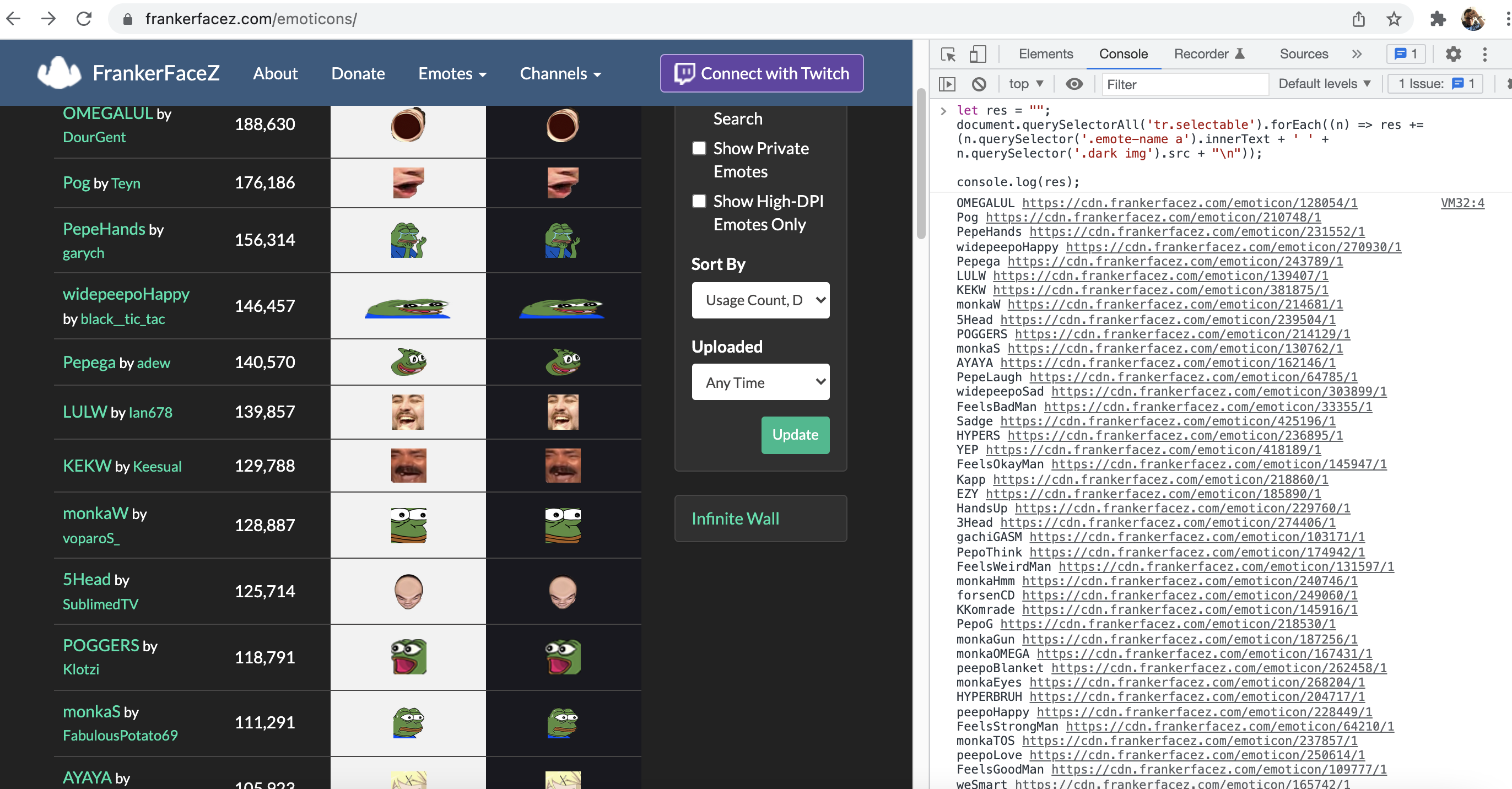
The first step was to download all the emojis from the site that I mentioned earlier. I ran some simple Javascript in the Chrome developer console to get the names of the emojis along with links to their respective images.
let res = "";
document.querySelectorAll('tr.selectable').forEach((n) => res += (n.querySelector('.emote-name a').innerText + ' ' + n.querySelector('.dark img').src + "\n"));

console.log(res);
I then copied the output and put it in a text file that I named emojis.txt.
I then proceeded to download all the emojis based on the list that we created earlier.
awk '{print "curl " $2 " --output " "pngs/"$1".png"}' emojis.txt | bash
Alfred
Now, I would like to introduce this productivity tool that I’ve been using called Alfred. It was basically what I used as the frontend of my emoji tool.
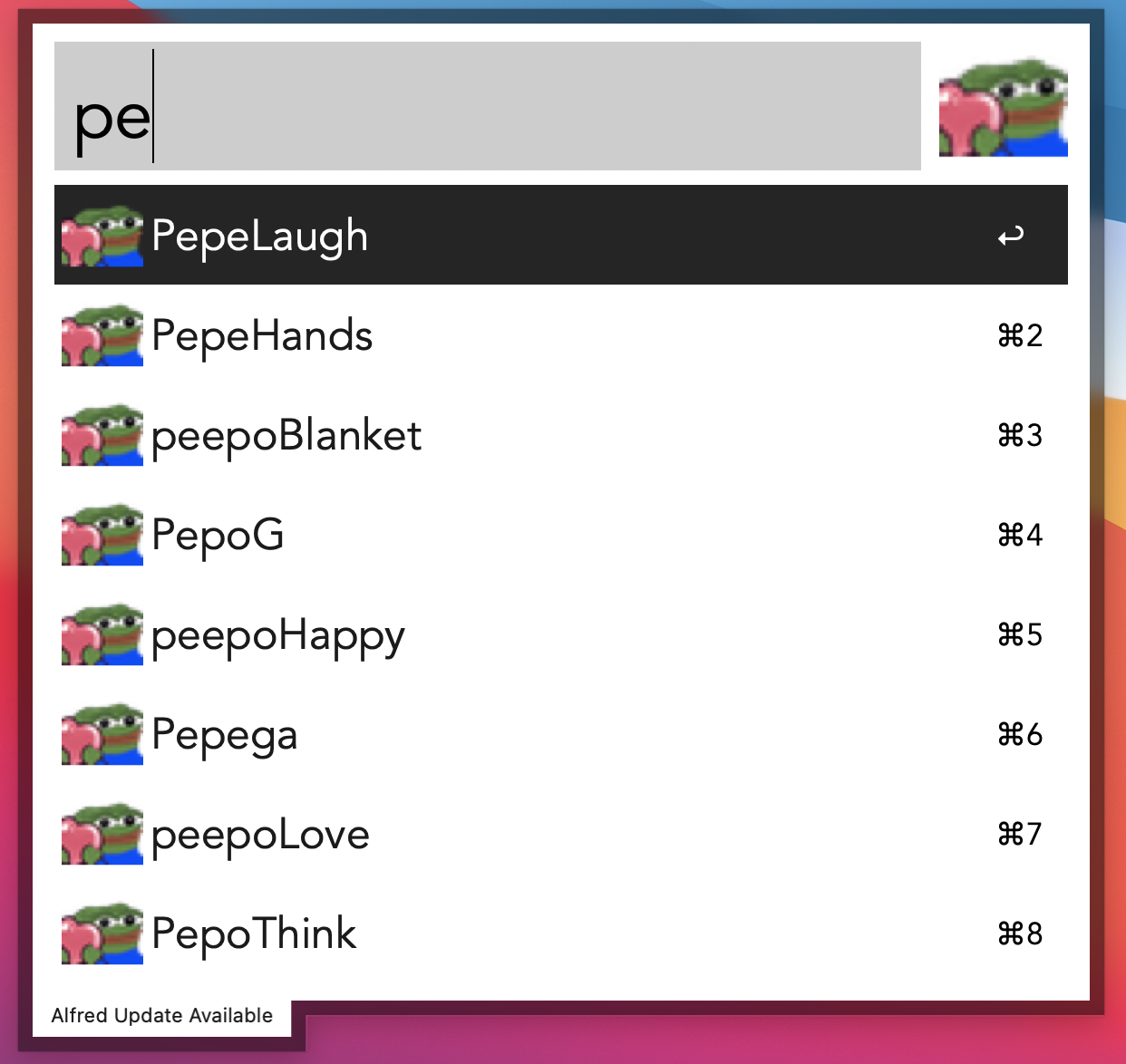
This tool basically allows me to to search through a list of emojis and then send the selected one to my clipboard.
I setup an Alfred workflow that basically looks like this.
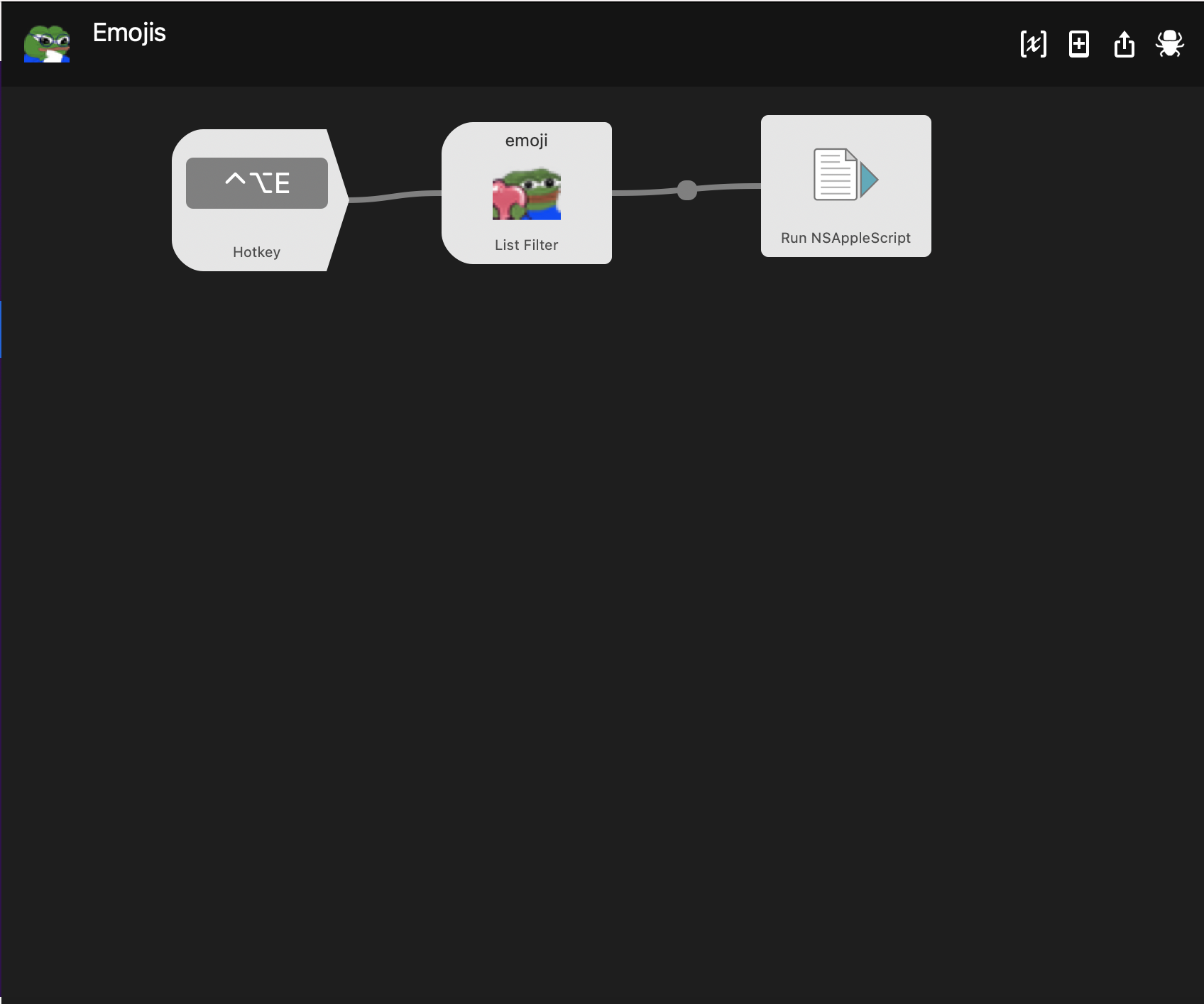
The way it works is that I have a hotkey to summon the search window, after which I filter through the list for the emoji that I want, and finally an AppleScript will be run to copy the said emoji to the clipboard.
There are three steps in the workflow, the first one is the trigger to initiate the workflow and is pretty self-explanatory.
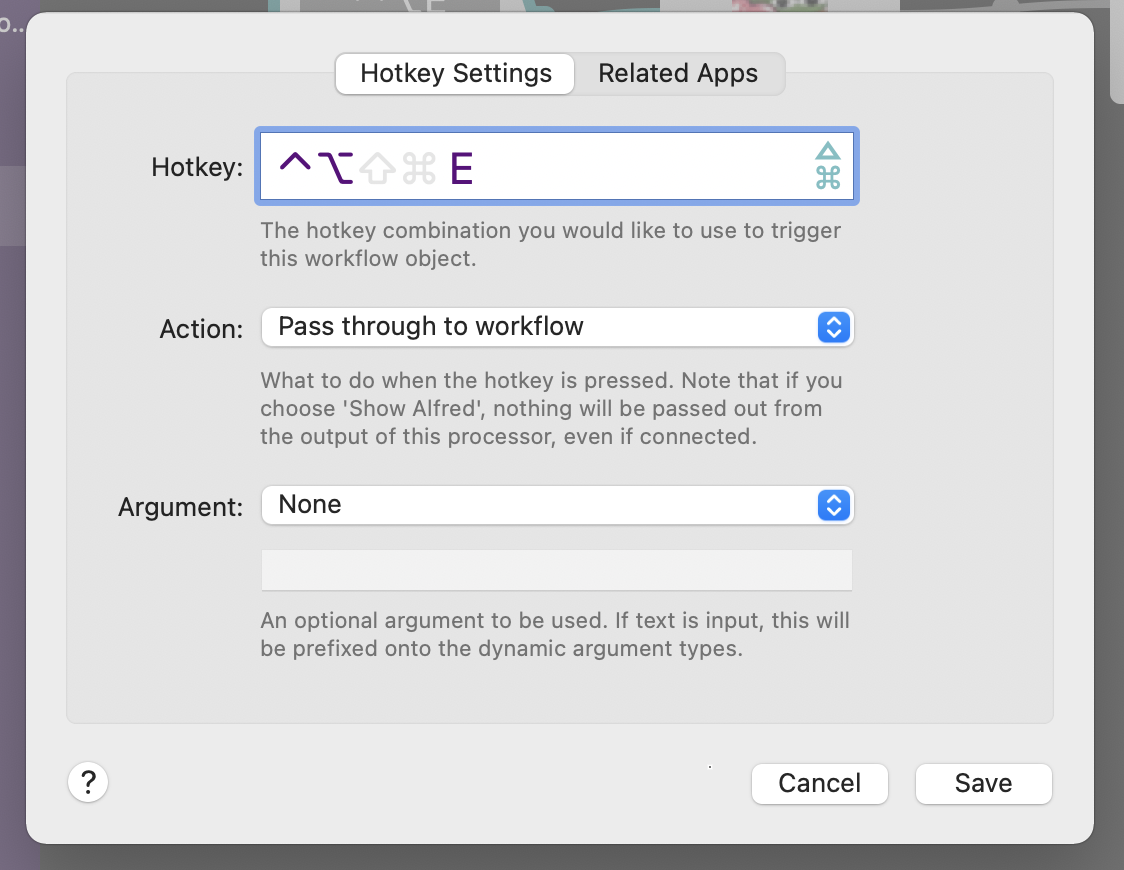
The second step the workflow is a List Filter, which we need to configure to contain our list of emojis and where they are located.
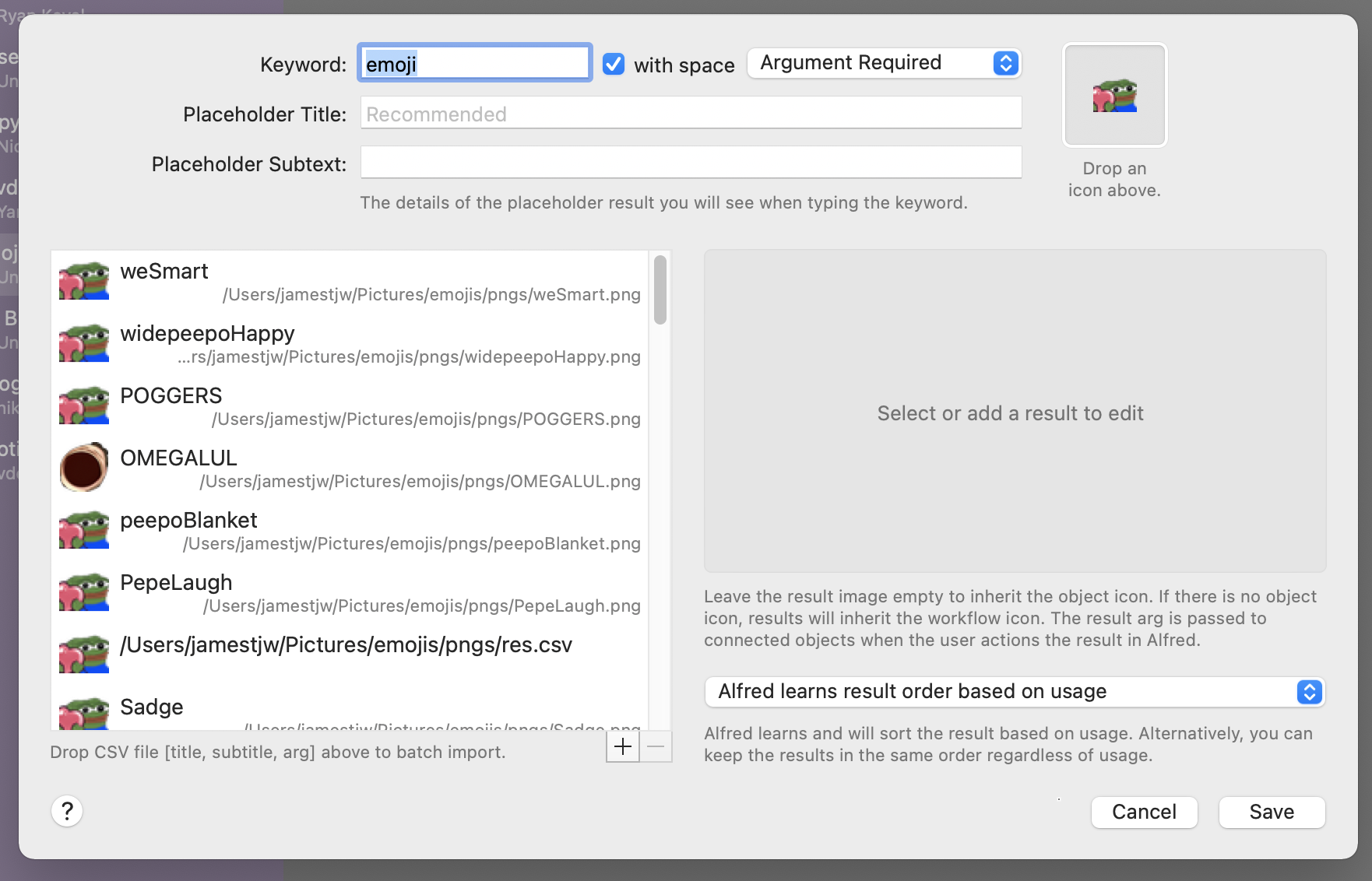
And if you notice the helptext on the bottom right, we should populate the list by feeding it a CSV file of a certain format. I built the CSV file with a simple command
find /Users/jamestjw/Pictures/emojis | grep '\.png' | perl -pne 'm/\/(\w+)\.png$/g && print "$1,,"' > res.csv
Note here how the arg column contains the path to the emoji, this is what will be passed to the next step in the workflow.
Now all that remains is to setup the AppleScript. The script itself is pretty self-explanatory.
on alfred_script(q)
	set thePath to q
	set the clipboard to POSIX file thePath
end alfred_script
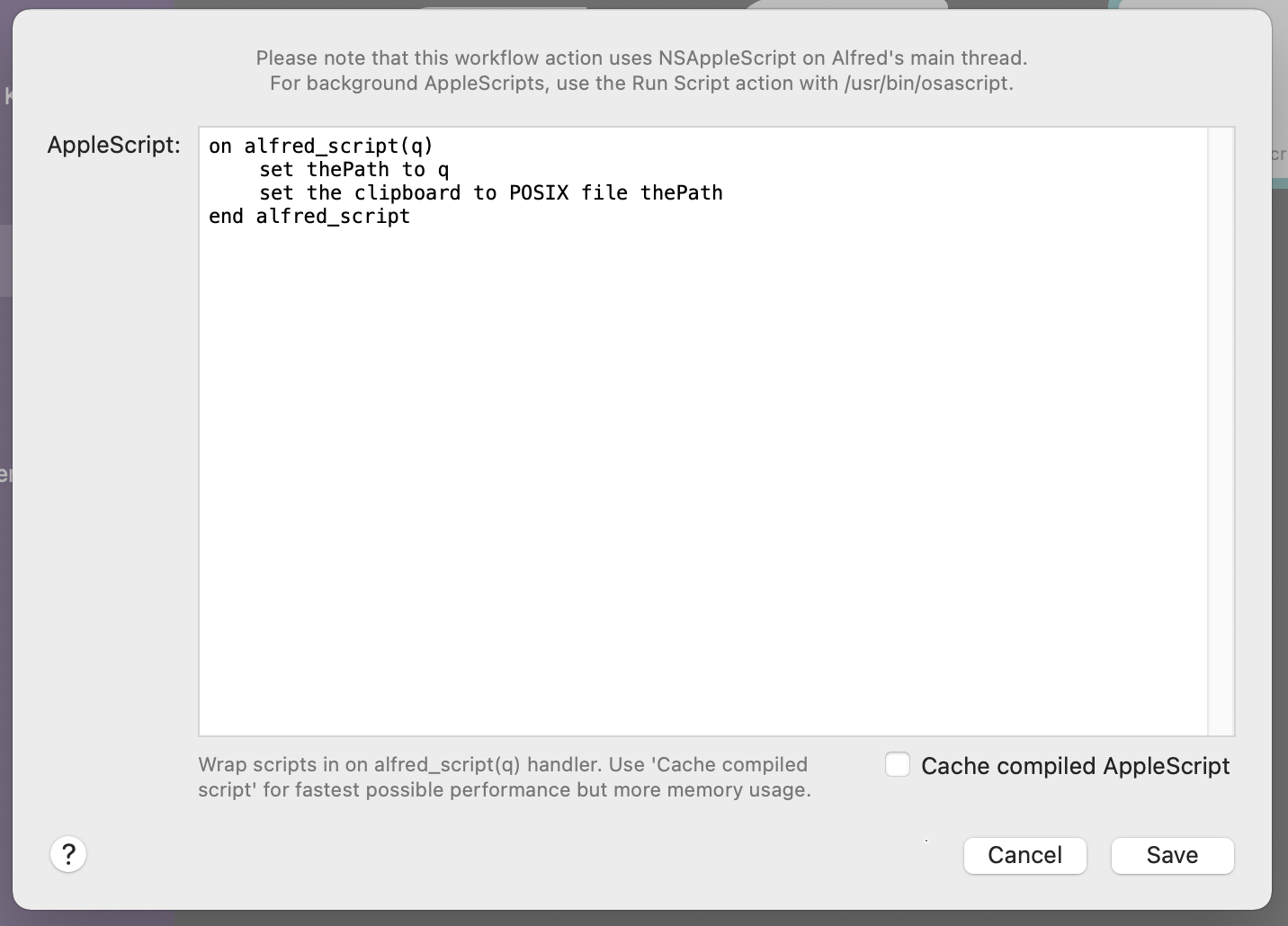
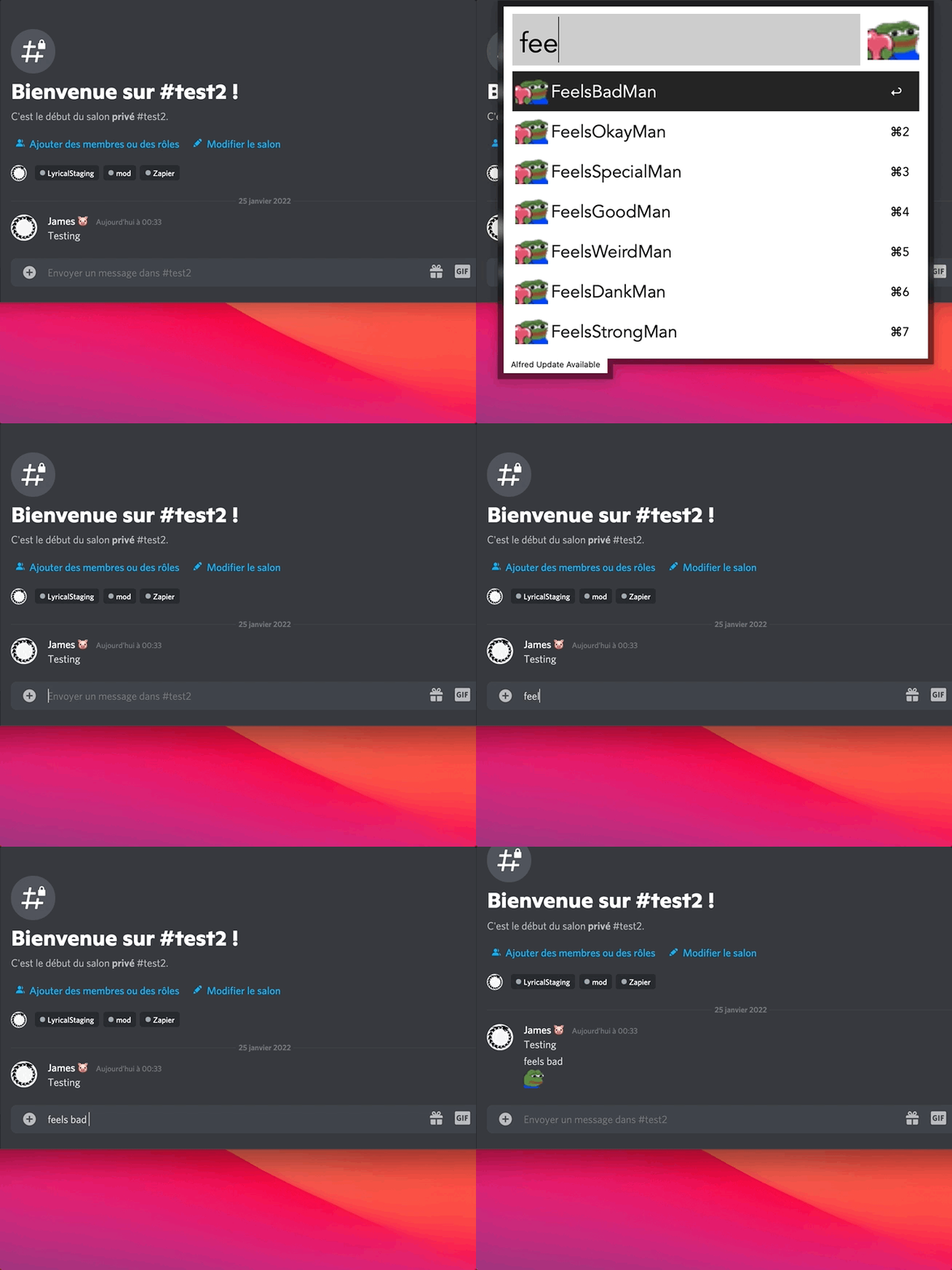
And that’s all about all it takes to set the entire thing up! Here’s a quick demo of how the entire thing works.